
How To Fix Microwave Interference Issues: 9 Expert Solutions
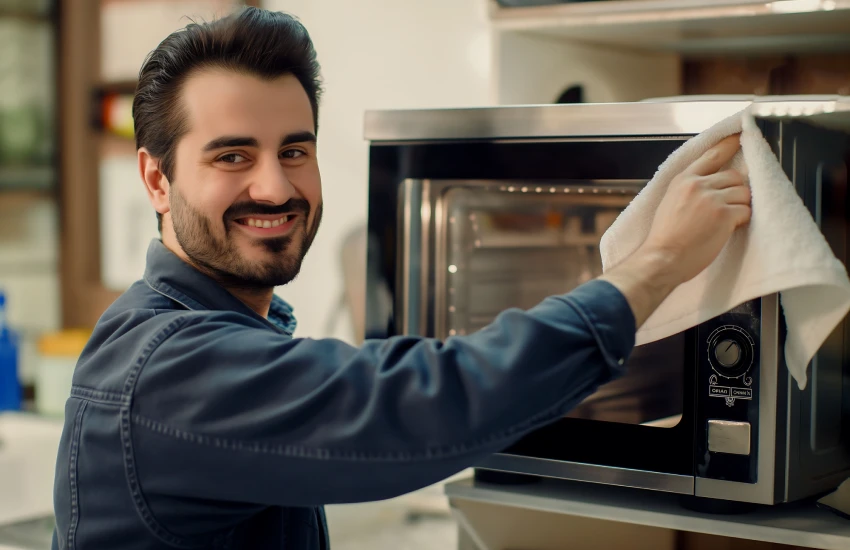
Why does your WiFi slow to a crawl every time someone heats leftovers? Your video calls freeze and your connection drops while the microwave runs, and then everything works again the second it stops. That is your microwave jamming your WiFi signal, and most homeowners can stop it in a few minutes.
Microwave ovens and WiFi both operate on the 2.4 GHz frequency. A microwave draws up to 1,200 watts of power while your router draws only one, and that power gap lets the oven overpower your WiFi whenever the two overlap.
Most cases are simple to fix with a small change to your WiFi setup, and the ones that are not usually mean the microwave itself is failing and needs a professional. The nine solutions that follow run in order, from the fastest fix to the last resort.
Your fridge is a kitchen superstar as it keeps all your food fresh and drinks cold.
But does the fridge feel warm when you open it?
Is there water all over the floor?
Fridge issues are the worst!
Why Your Microwave Interferes With Your WiFi
A microwave heats food using electromagnetic waves at 2.45 gigahertz, and that frequency falls inside the same 2.4 GHz band your WiFi, Bluetooth, cordless phones, and baby monitors all use. The oven is sealed with metal shielding that traps nearly all of that energy inside. A small amount always escapes, and that is enough to cause trouble.
A microwave runs on 800 to 1,200 watts while your router runs on roughly one watt. Even a trace of leaked energy is hundreds of times stronger than the WiFi signal beside it, and your connection stays buried until the microwave shuts off.
A small amount of interference is normal and completely harmless. If your WiFi dies across the whole house every time the microwave runs, though, the shielding or the door has started to fail, and that is a repair issue rather than a network one.
9 Expert Solutions to Fix Microwave Interference
Start at the top, since the first solutions take only minutes and clear up most cases, while the last few deal with a microwave that has actually failed.
1. Prove the Microwave Is the Problem
Before you change anything, confirm the microwave is the real source. Run an internet speed test with the microwave switched off, then run the same test while it heats a cup of water. If the speed drops sharply during the second test, the microwave is your culprit, and the fixes below will solve it. If the speed holds steady, your WiFi trouble lies somewhere else.
2. Move Your Router Away From the Microwave
The closer your router sits to the microwave, the worse the interference becomes, which makes distance the simplest fix of all. Moving the router even a single room away often clears the problem on its own, and a few placement choices help the most:
- Keep it out of the kitchen and away from the microwave and other large appliances
- Raise it off the floor to shelf or shoulder height, where the signal travels more freely
- Position it near the center of your home for even coverage in every room
3. Switch to the 5 GHz Band
Switching your devices to the 5 GHz band is the single most effective fix, because microwaves only disrupt the 2.4 GHz band and cannot reach 5 GHz at all. Nearly every router built in the last decade broadcasts both bands, and the change usually takes a minute in your settings. The only real trade-off is range.
2.4 GHz | 5 GHz |
Reaches farther and passes through walls | Shorter range and weaker through walls |
The microwave jams it | The microwave cannot reach it |
Better for far rooms | Better for speed near the router |
If your router also offers the newer 6 GHz band, it gives you the same immunity with even less congestion.
4. Change Your WiFi Channel
If some of your devices need to stay on the 2.4 GHz band, moving to a less crowded channel reduces how much the microwave overlaps your signal. The band has 11 channels, but only three of them avoid overlapping one another. Switching to one of those three makes a clear difference:
- Open your router’s settings in a web browser or its app
- Find the setting for the 2.4 GHz channel
- Change it to channel 1, 6, or 11
- Save the change, then test your connection while the microwave runs
Pro Tip: Channels 1, 6, and 11 are the only three on the 2.4 GHz band that never overlap with one another. Choosing one of them gives you the cleanest possible signal, whether the interference comes from your microwave or a neighbor’s network.
5. Separate Your Other Wireless Devices
The microwave is not the only device competing for the 2.4 GHz band, and stacking several of them in one spot makes the interference noticeably worse. Move the microwave away from nearby wireless devices. Cordless phones, Bluetooth speakers, baby monitors, and older wireless security cameras can all compete for the same frequency, increasing interference.
6. Check the Door and Seal
The door is the first place a microwave starts to leak. Years of use loosen the hinges and wear down the seal around its edge, and a door that no longer closes tightly lets far more energy escape. Give yours a careful check for:
- A door that sits flush against the frame and latches firmly
- A seal that is clean and unbroken, with no cracks or gaps
- Hinges that hold the door in line without sagging
- A frame free of grease and food debris that could block a tight seal
7. Test It for Leakage
If the interference is severe and your microwave is several years old, it is worth testing for actual leakage. Inexpensive leak detectors are available, though their accuracy varies widely, and a technician with a calibrated meter will give you a far more reliable reading.
Important: The interference itself poses no health risk, because the energy that escapes a working microwave is minuscule. A cracked door, a broken seal, or a microwave that runs with the door ajar is a real safety concern, and it should be inspected or repaired by a professional right away.
8. Upgrade Your Router or Plug In
If your equipment is several years old, newer hardware can end the problem permanently, and two options work particularly well:
- Upgrade to a dual-band router: A current model gives you dependable access to the 5 GHz band along with stronger performance throughout your home
- Switch to a wired connection: Running an Ethernet cable to your most important devices takes them off WiFi completely, which puts them beyond the microwave’s reach for good
9. Repair or Replace the Microwave
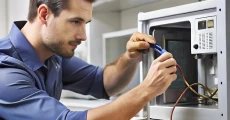
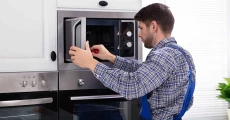
When none of the network fixes make a difference, and the interference is still severe, the microwave itself has become the problem. Worn shielding or a failing door does more than disrupt your WiFi. The same faults also cause the oven to heat food unevenly and waste electricity, and CLT Appliance Repair can inspect the shielding and door, repair whatever has worn out, and tell you plainly when a replacement is the smarter investment.





Final Thoughts
Most microwave interference is caused by WiFi settings or device placement and can be resolved with a few simple adjustments. If the microwave itself is causing the problem, the issue may involve worn door seals, damaged shielding, or other internal components that require repair. Leaving these faults unaddressed can affect both performance and safe operation.
If troubleshooting does not resolve the interference, CLT Appliance Repair can inspect the microwave, identify the underlying cause, and recommend the appropriate repair or replacement. Book your service online, and we’ll help restore your microwave to safe, reliable operation.
FAQs
Microwaves and WiFi share the 2.4 GHz frequency, and a microwave is hundreds of times more powerful than your router. The small amount of energy it leaks overwhelms the WiFi signal for as long as the oven runs.
No, the energy that leaks from a working microwave is tiny and harmless, and it disrupts your WiFi only because the two share a frequency. A visibly damaged door or seal is a separate matter and should be checked by a professional.
Severe WiFi interference from an older microwave can be one sign, and a cracked or sagging door is another. The only reliable way to know is to have a professional measure the actual leakage with proper equipment.
Almost always. Microwaves interfere only with the 2.4 GHz band, and moving your devices to a 5 GHz or 6 GHz connection avoids the conflict entirely. Just remember that 5 GHz has a shorter range.
No, foil is not a reliable fix, and it should never be placed inside the microwave, where it becomes a fire hazard. Repositioning your router or switching WiFi bands is both safer and far more effective.
Don't let a malfunctioning Microwave disrupt your daily life. Contact CLT Appliance Repair today at 704-606-9043 to schedule your oven repair service.
We'll have your Microwave back to optimal performance in no time!
Freezer Repair Indian Land SC | Freezer Repair Indian Trail NC | Freezer Repair Pineville NC | Freezer Repair Rock Hill SC | Freezer Repair Belmont NC | Freezer Repair Matthews NC | Freezer Repair Lancaster SC | Freezer Repair Cornelius NC | Freezer Repair Fort Mill SC | Freezer Repair Concord NC | Freezer Repair Denver NC | Freezer Repair Monroe NC | Freezer Repair Mooresville NC | Freezer Repair Harrisburg NC | Freezer Repair Lake Wylie SC | Freezer Repair Huntersville NC | Freezer Repair Kannapolis NC | Freezer Repair Mint Hill NC | Freezer Repair Waxhaw NC | Freezer Repair Troutman NC | Freezer Repair Davidson NC | Freezer Repair Gastonia NC | Freezer Repair Charlotte NC